
Want to Make Extra Money Now?
|
Starting a side hustle is a great money-making idea. There are many reasons why you might want to start a side hustle, such as to pay off debt, save for a rainy day fund, or simply earn money online.
Whatever your reason, there are many options available to you when it comes to starting a side hustle for men or women.
Besides using PayPal games that pay real money (yes, that's a thing), podcasting is my choice, as it requires very little start-up cost and can be done entirely from home.
It's one of the best ways to make money online without much investment. Plus, it’s a great way to connect with like-minded people and build a community around your show.
If you’re interested in starting a podcast, the first step is to come up with an idea for your show. What will it be about? What format will it take? Who will be your target audience? Once you have a good idea of what you want your podcast to be, the next step is to start planning and recording your episodes.
Learn how to start a podcast and make money with my step-by-step podcasting tutorial. In this post, I'll teach you how to make it, how to launch it, and how to profit.
All you need is a great show idea.
There are a few things you’ll need in order to get started:
Podcasting 101: Starting a Podcast
This is a long (but helpful) podcast guide, close to 4,000 words long, so you would benefit from bookmarking this page to reference as you start your podcast.
“Words mean more than what is set down on paper. It takes the human voice to infuse them with deeper meaning.” – Maya Angelou
Why would you want to start a podcast?
Starting a podcast is one of the fastest-growing side hustles and most exciting forms of media today. It offers an unrivaled personal touch and level of accessibility. With millions of people listening via free music apps on their commute to work, at the gym, or any other number of activities… a podcast can reach people at times that visual media can’t.
And in today’s busy world, that reach is gold.
About a year ago, I successfully grew a new podcast called “Ranked Edge” from 0 to 6,000 monthly listeners in 3 months. The show interviewed top players of the popular PC game, League of Legends, for tips to help normal players improve.
Unfortunately, I ended the show for reasons in my personal life and the opportunity to work on other things, but the point is this: with the right approach, rapid podcast success is achievable.
In this post, I’m going to go over exactly how I engineered my podcast for success and grew my business… a blueprint that you can follow for your show today.
Let's begin.
1. Picking your Podcast Style
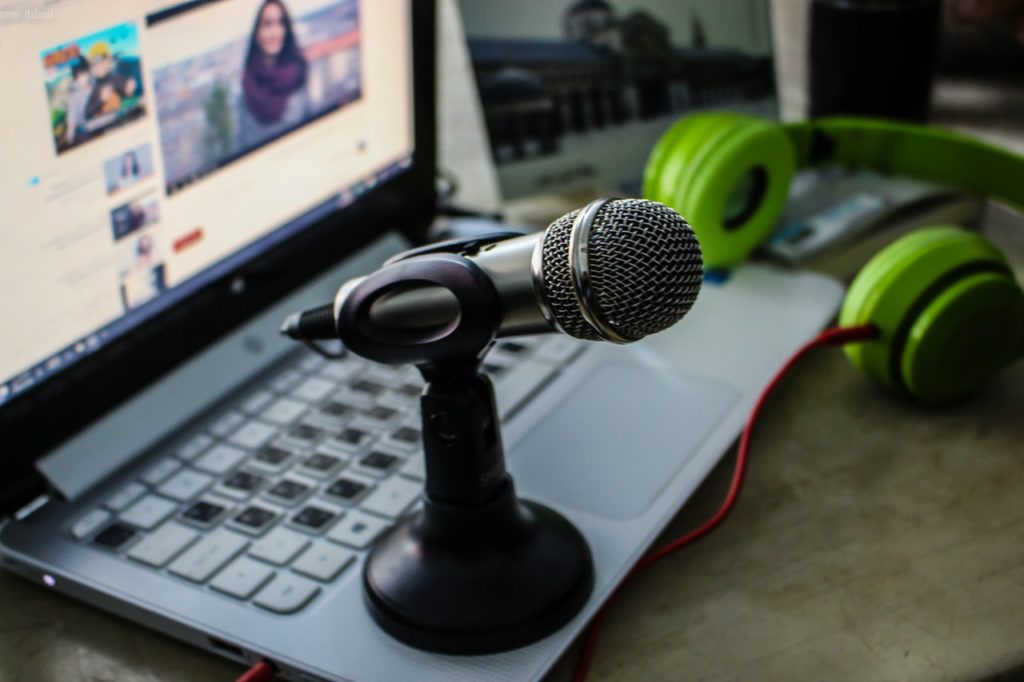
Ranked Edge aired once per week, and each episode was between about 20 and 40 minutes long. This is a fairly straightforward and typical setup for a podcast these days.
There isn’t a right or wrong way to do it, but setting a plan and being consistent is key. Your audience will begin to expect your show to be a certain length and release on a certain day or at a specific time. Here are a few things to keep in mind:
- A 20-30 minute show is great for commutes to work or time at the gym.
- The beginning of the week is generally a better time to release a weekly show than the end of the week, and never release on weekends if you can avoid it.
- A 30-minute show could take over an hour to record (accounting for setup, intro/outro/ads recording, etc.) and several hours to edit and publish… keep this in mind when you select your frequency.
If being locked into a weekly (or monthly, or daily, etc.) release schedule stresses you out, consider launching in seasons. For example, the mega-hit “Serial” launches a “season” of episodes about once every year. You can release the episodes over time, or all at once Netflix-style.
So, start brainstorming the style of show you think fits for you.
Figure out these 3 things before moving on to the next step:
- Approximate show length
- Show frequency (daily, weekly, monthly, seasonal)
- Target release day/time
2. Starting a Website for your Podcast
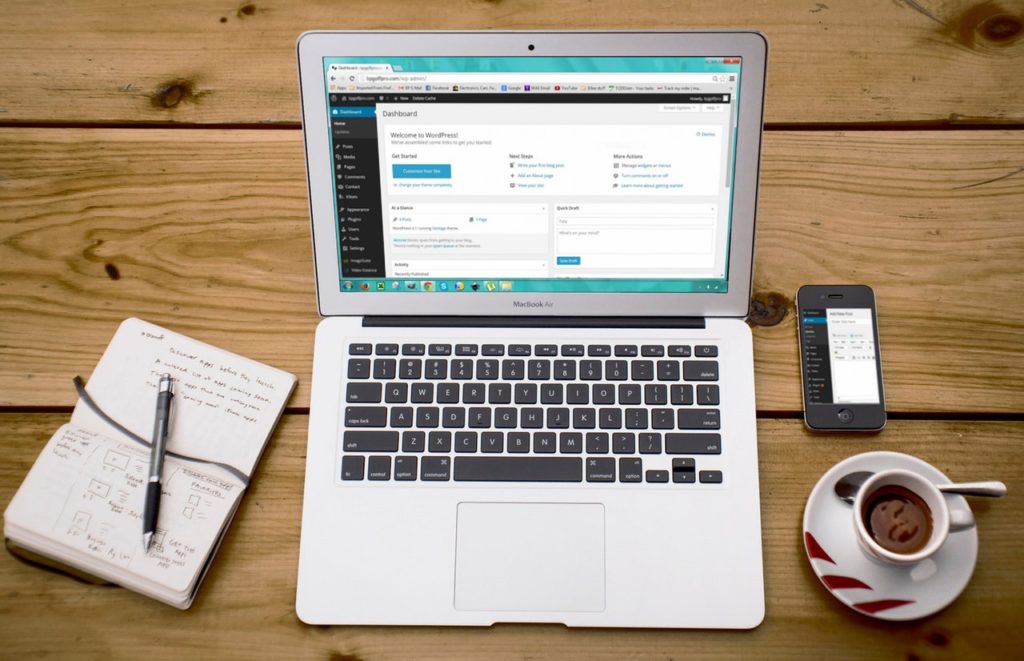
If you don’t already have a website to share your podcast on, I highly recommend you start one. Building a professional-looking website has never been cheaper or easier than it is today.
While it is possible to publish a podcast without a site, I highly recommend posting your episodes to your website in a blog format. A site is a great place to post show notes and allow your listeners to comment, share, and find your other content.
I won’t go too off-topic explaining the details in this post, but if you want to build a great website quickly or are looking to take your current site to the next level, I would recommend BlueHost.
Once you sign up, you'll want to begin by selecting a memorable domain name for your podcast; Bluehost often provides one for free in the first year.
Opt for a basic shared hosting plan and use Bluehost's one-click WordPress installation. Once set up, pick a theme that matches your podcast's vibe, then enhance functionality with essential plugins like “Seriously Simple Podcasting” or “PowerPress”.
Later on, you'll just upload episodes, integrating show notes and audio players.
You can start a blog for as cheap as $2.95 per month when you choose to host your blog on Bluehost which is the best web hosting provider if you want to start a self-hosted WordPress blog or site. Bluehost is one of the few web hosting companies recommended by WordPress.org to host self-hosted WordPress blogs.
3. Equipment Needed for Podcast
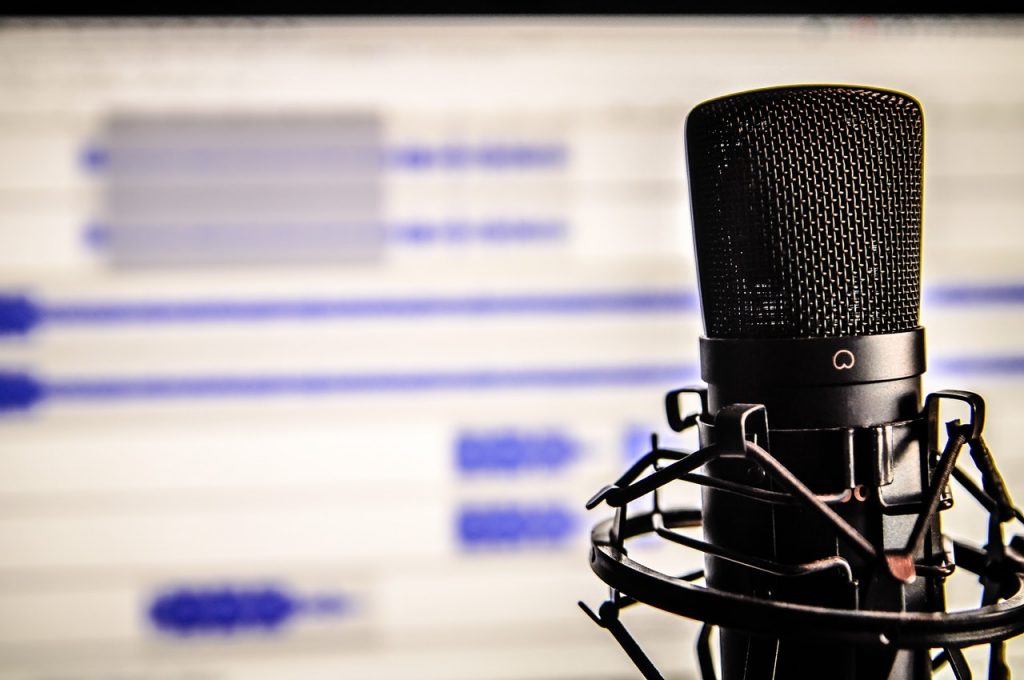
Starting and running a podcast is fairly cheap, but it does require a bit of an upfront investment. If you want your show to have good audio quality, you’ll need a good microphone. The investment is well worth it, as many listeners won’t even give your show a chance if the audio quality is poor.
Luckily, there are some really good affordable options as a simple headset mic like the NUBWO can be a perfect starting point.
I use and highly recommend the Audio-Technica ATR2100X-USB Microphone, which you can check the price below:
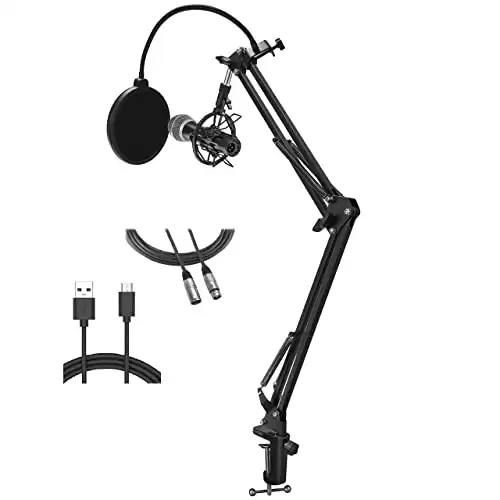
This bundle comes with the Audio-Technica ATR2100x-USB/XLR microphone, a Knox Gear boom arm and shock mount. It has everything you need for an entry level streamer setup and for the price the quality of the microphone you get is difficult to beat.
In addition to the mic, I’d recommend a pop filter and a boom arm. The pop filter will help with “pop” noises caused by your lips, and the boom arm will make it much easier to find a comfortable recording position.
Both are cheap and can be found under related products for the mic. From my research and experience, this mic offers exceptionally good audio quality for the price, coming close to mics many times its cost. Save the time and money wasted on other mics, and pick up one of these.
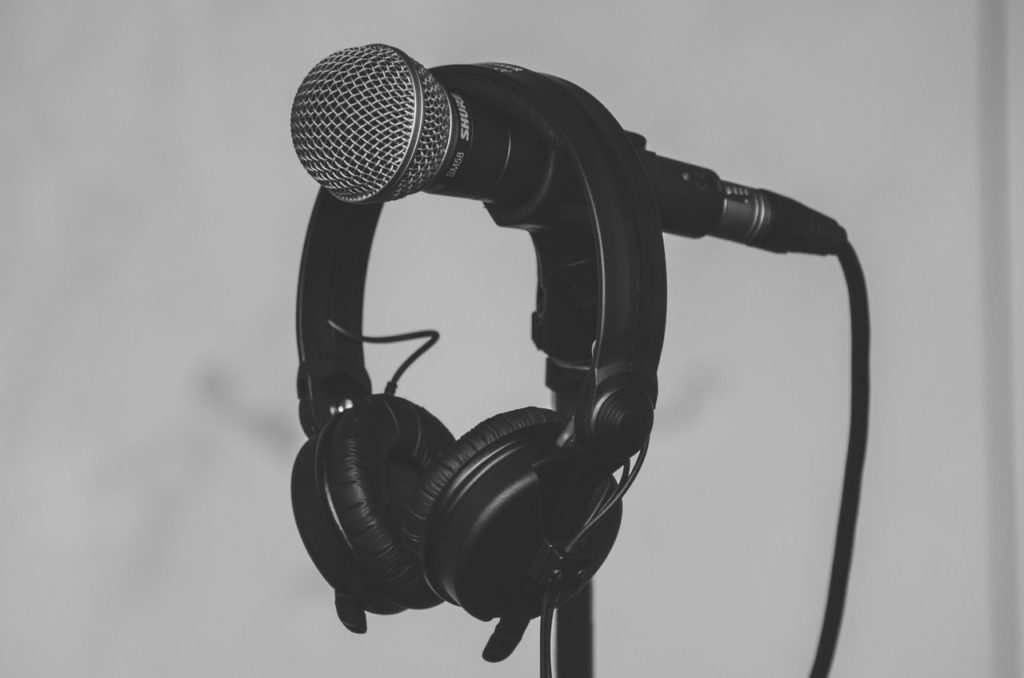
Other than that, all you need hardware-wise to start recording is a computer. I’d also recommend some decent headphones, as you’ll want to hear an accurate representation of your audio when editing your episodes. I love my Audio-Technica ATH-M50x Professional Studio Monitor Headphones, which have been serving me well for years.
Once your podcast starts getting getting a good number of downloads, consider getting more professional home recording studio equipment that can be essential.
4. Podcast Setup: Recording and Editing
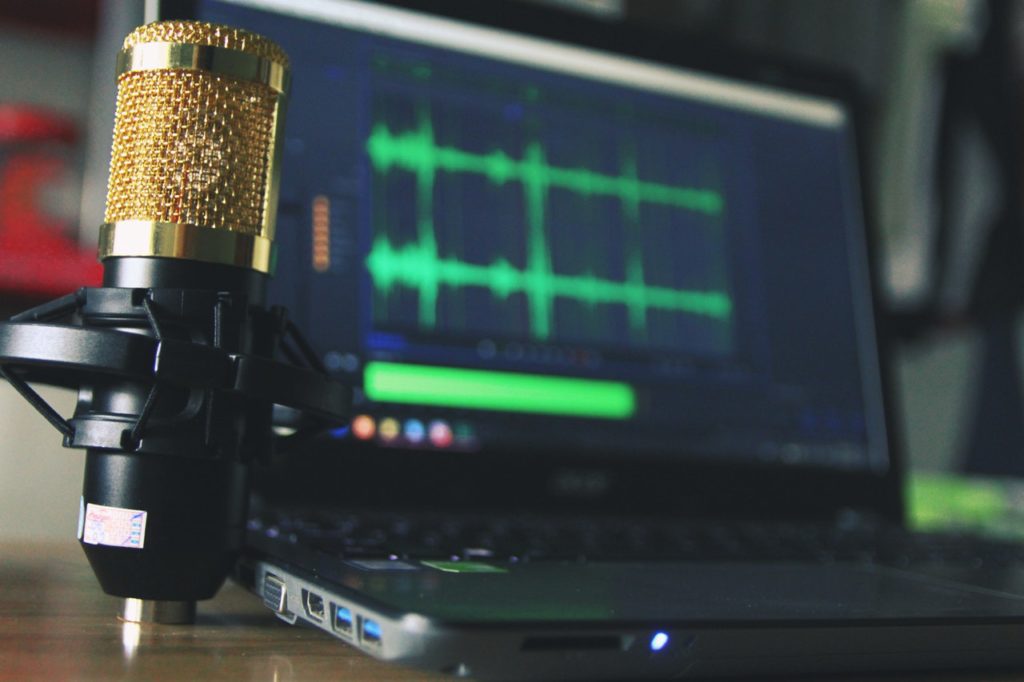
Next we will go over software required. Starting out as a podcaster, there’s no reason to spend a lot of money on fancy editing software. I did the first five episodes of Ranked Edge using two free programs before handing off editing duties to a buddy that had some more advanced tools.
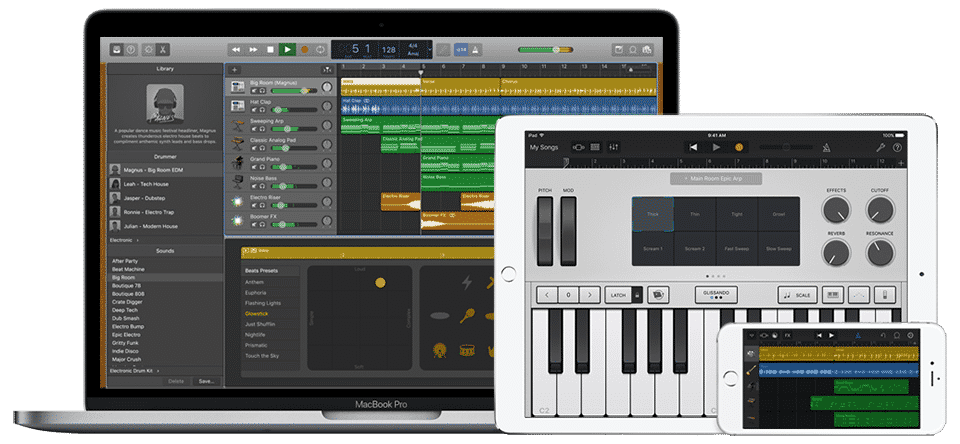
If you have a Mac, I highly recommend GarageBand for recording and editing. The program comes free on most Macs and does a fine job. You can play with your equalization presets, chop up tracks at will, and export high-quality file types.
In addition to GarageBand, I used Audacity. Audacity is a free program for recording and editing audio, much like GarageBand. I took my tracks into Audacity to run them through its excellent noise filter to get rid of any ambient or white noise. It’s possible to do everything in Audacity, but I preferred to record and edit in GarageBand.
If you have a Mac, I’d recommend playing with both programs to see what you like. If you have Windows, Audacity is definitely your best free option, so download and get familiar with it.
5. Recording your Podcast Guests
A lot of podcasts have multiple hosts or feature interviews with guests. How do we accomplish that? For Ranked Edge, every episode featured me interviewing a guest… usually, someone very far away (as far as New Zealand in my case!), so it wasn’t practical to interview them in person.
The solution? Skype combined with call recording software. Call recording software runs in sync with Skype to record audio tracks from the call. It even lets you split the tracks up to have distinct tracks for each person. This is great for editing, as you can play with equalization, volume, etc. independently.
If you have a Mac, I recommend purchasing Ecamm Call Recorder.
If you have a PC, I recommend purchasing Pamela Call Recorder.
Both programs do the same sort of thing on their respective platforms. Once you get set up with a recorder, you’re ready to start interviewing or co-hosting. I’d strongly recommend testing this out with a friend a bit before taking on a real interview.
6. How to Record a Podcast
Now that you’ve got your equipment all sorted out, it’s time to start recording. First of all, spend some time practicing with your mic and your setup. You want to make sure you are comfortable with using the mic in tandem with the software.
For the Audio-Technica microphone linked above, you want to be about 2-3 inches from the mic while recording. This will give you a smooth, rich sound with minimal white noise. Use your mic stand or boom arm to get yourself in a comfortable position.
In GarageBand or Audacity, you want to record all of your voice on one track. Consider naming the track “main” or “your name”. If it’s a solo recording, it’s perfectly fine to pause and restart the recording as needed.
If you are on Skype recording with another person, getting all of your software back in sync can be a pain, so avoid stopping the recording. Keep in mind, however, that it’s easy to remove chunks of dead space in editing, so you can easily “break” for a minute or two with the recording still going, come back, and make it all seamless later with editing.
I suggest a bulleted list of notes to keep you on topic as you record. For a solo show, this could simply be your talking points and some details you want to remember. For an interview, this could be details about your guest and questions you want to ask.
No notes is a bad idea, as you can sound unprepared. It is annoying to listen to a podcast when the host has a lot of pauses, “umms”, etc. Some of that can be cleaned up in editing, so don’t worry about it here and there, but it takes time to edit it out and is extremely tedious if there is a lot that needs to be fixed.
On the flip side, it also sounds bad if the show is too “scripted”. By scripted, I mean when the listener can clearly tell you are reading word for word from a script. It sounds robotic and unnatural. Exceptions to this rule may be a story driven show or audio blog where the point is to share an exact narrative.
Introductions, outros, and advertisements should generally be recorded after the show. You can follow a script for these and record them on their own tracks, moving them into the right gaps in your recording. You want these to sound polished, so don’t be afraid to re-record them a few times till they sound good.
Finally, help yourself and guests get comfortable. Chat and joke a bit before you start recording and get a flow going. Once everyone seems to be loosening up, start recording.
7. Podcast Editing Tips
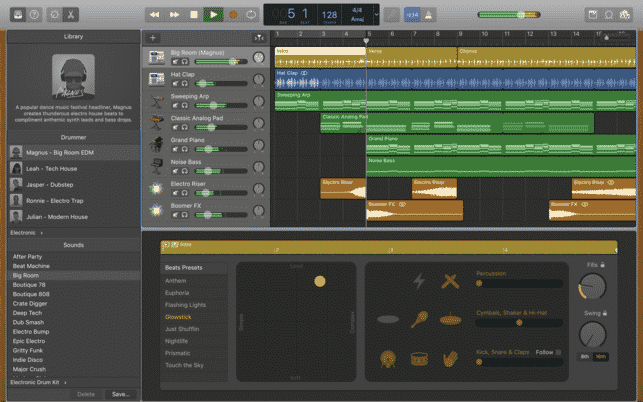
Alright, so you’ve got your show recorded. Congrats! Now it’s time to polish up your audio in editing and get it ready to publish.
The first step to editing is good recording, so make sure you follow the practices I outlined in the previous section.
The second step is to not shoot for perfection… you’ll drive yourself crazy and waste a TON of time. While good audio quality is important, over-editing can cause your content to seem fake or scripted, which isn’t good either. Find a happy medium.
Ok, now that that’s settled, let’s get into the nuts and bolts of editing.
First of all, in your editing tool, you should have the raw audio track for your recording. If you had a guest or co-host, it is best to have a separate audio track for each person. Your call recording software can help you do this by isolating your track and your guest’s track. For Ecamm, this is done after recording with a program they provide with the recorder.
For each track, start playing with the equalization settings. See if you can improve the quality of the voices by tweaking these settings. Play it by ear, and don’t over-do it. Keep in mind programs like GarageBand let you do this per track. You can also save the settings to use next time (useful for your own voice or a co-host’s voice).
The next thing to get familiar with to make editing easy is the sound wave that your audio file is comprised of. Start listening to your track and watch the wave. With a little practice, you’ll start to be able to see what “umms” and lip smacks and other noises look like in the wave.
Listen to each audio track and remove major errors. Try to line up the tracks such that you are lining up dead space to dead space. This will prevent it sounding like an obvious jump cut. Keep in mind if you have multiple audio tracks, you want to keep them in-sync. So, if you remove 3 seconds from your track, remove the same 3 seconds from the other track (since one person is generally speaking at a time, the other audio track should be flat anyway).
If you have background noise from your non-speaking track that is bothering you, you can simply cut out the track of the non-speaking person when they aren’t speaking, ensuring complete silence. Once again, make sure you keep tracks lined up.
Now’s a good time to apply noise reduction to the tracks. This can be done in Audacity by going to Effect -> Noise reduction. If you are working in a different program and need some noise reduction, you can export your tracks and apply the effect in Audacity, and then export back to your primary program. It’s a bit tedious, but it can have a huge effect if white noise is causing you problems.
The last thing you should do with your tracks is to make sure each track is at about the same volume level. Toggle the volume of the louder person down a bit until things are even. It can be really annoying to listeners if one voice is a lot louder or softer than the other.
Once things are sounding good, drag your intro, outro, and advertisements in on their own tracks. Slide the voice tracks as needed to fit them… and remember… keep your audio tracks lined up!
The final step is to export into an MP3 file. This is the file that you will actually upload to your host. Keep an eye on your file size, as most hosts will charge you based on file size one way or another (generally with a monthly restriction on total file size uploaded).
You don’t want to reduce quality to the point that your listeners can notice, but at the same time, making the file bigger than it needs to be wasted hosting space. I suggest testing this a bit to see what works best for you.
8. Hosting Your Own Podcast
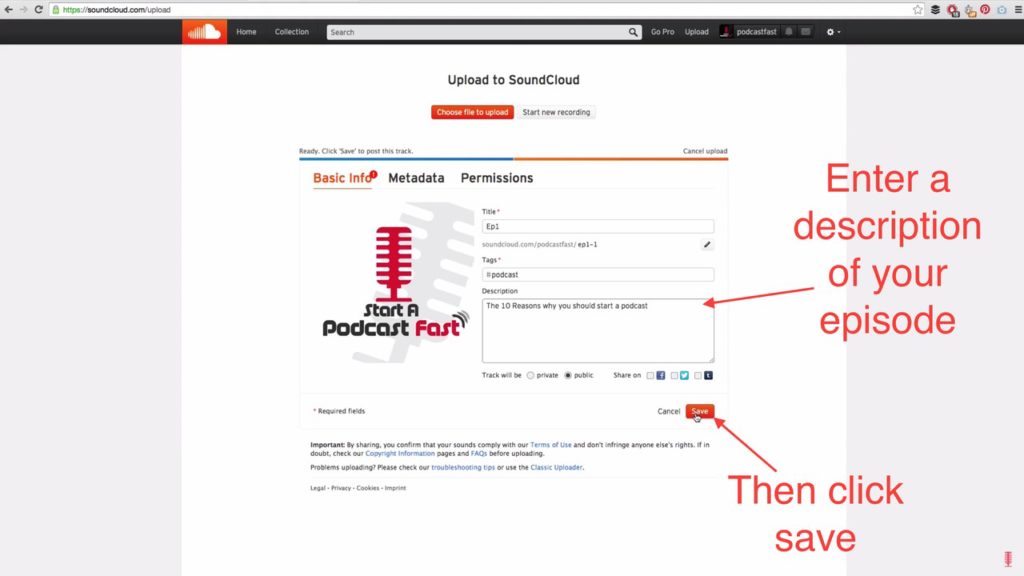
Now that you’ve figured out how to record and edit your podcast, you’re going to need a podcast host to host your audio files for you. Some people attempt to use their web host to store audio files, but this is a bad idea.
Having thousands of people downloading audio files can really tax and slow down your site… not a good user experience. Luckily, there are some great, affordable companies out there with services designed to host podcasts.
For Ranked Edge, I used Libsyn. I really liked my experience with this company. Hosting plans are fairly cheap, the interface is easy to use, and the stats they provide are fantastic. I suggest picking a plan that will work for your show and start rolling.
If you want to check out other options, I hear good things about Buzzsprout. You can also save a bit (or possibly get free hosting) if you go with SoundCloud. Do a bit of research and see what fits for you.
As far as hosting your show goes, the process is pretty simple. Once you sign up, you’ll be able to fill out basic information about your show, and then upload audio files as episodes. You can then populate more data for each episode.
Once you upload episodes, you can get links that allow you to post a streaming audio player for the episode on your website, social media, forums, etc.
Services like Libsyn will provide you with an RSS link. This is what you need to submit to services like iTunes and Stitcher so that people can find and subscribe to your show.
9. How to Launch a Podcast
A major key to gaining early traction with your podcast is doing whatever you can to appear on iTunes New and Noteworthy. This is an area where Apple features podcasts that are between zero and eight weeks old. Once you pass eight weeks, you’re thrown into the same big pond as everyone else, so maximizing this time can really give you a big boost.
So, how do you do that?
10. Launch Podcast with Multiple Episodes

A big component to getting featured in New and Noteworthy is download numbers. A great way to multiply your download numbers is to launch with more than one episode… I suggest 3 to 5.
This is a great strategy because it gives listeners more time to get to know you. If a listener liked your episode, they will hopefully try another. If you have another episode, you’ve instantly gotten 2x the downloads you would have had. If you have 5… well, you can see where I’m going.
If they downloaded and enjoyed multiple episodes, they are likely to subscribe. Subscriptions are key because, for most podcast players, it means they will start downloading all of your new episodes automatically. This means that you will get a nice chunk of automatic downloads when you release your next episode.
11. Leverage Your Existing Community

As stated above, your goal is to get as many downloads as possible and get on New and Noteworthy to become more visible and allow even more people to discover your show. So, as soon as you launch and throughout the next 8 weeks, share your episodes heavily.
If you have a blog or existing audience of some kind, share it with them. Make sure they know the show is coming in the weeks leading up to it, and then share all of your episodes heavily. Make it an event, get people excited.
Even if you don’t have that sort of audience, you most likely have social media. Share your episodes on Facebook and Twitter and try to find friends and family that may be interested in your show.

While you need to make sure you are respectful of the rules for the group you are posting in, forums can be a fantastic way to get eyes on your show. Try to post catchy or interesting posts that share your episodes with the community.
Depending on your niche, the right subreddit or Facebook group could be a gold mine. Take some time to find these sorts of communities and become involved with them leading up to your show launch.
13. Buy Advertising for Your Podcast
If you can afford it, it could be good to run some ads to boost traffic. I’d recommend Facebook ads in most cases.
Do what you can afford, and run targeted ads to specific episodes. Link directly to your website’s post of the podcast episode.
14. Sustainability & Growth
Going forward, it’s all about steadily building an audience. It may take some time to get traction, but sticking with it and constantly improving your product is the best way to improve. Keep doing the techniques discussed in the Launch Strategy section. In addition, here are some important tips to keep in mind:
- Work on getting guests that have their own following. After posting their episode, send them an email or message thanking them and asking them to share the episode. This can be a great way to get in front of highly relevant people and expand your audience.
- Develop relationships with other podcasters and get on their show as a guest. Similar to having guests of your own, getting on another show puts you in front of their audience. If they like you, they are likely to check out your stuff too.
- Stay ahead of schedule. I’d recommend recording episodes a few weeks ahead of time and always having a few ready. That way, if you have a problem or emergency, you don’t miss a release date.
- Stay consistent. Try to release your show on a consistent schedule (day and time) so that your audience can get used to looking for it on those days. This will allow them to get excited in anticipation and is good to maintain engagement with your audience.
15. Monetization
Once you’ve got your podcast up and running, you’re probably going to want to start trying to turn a profit. There are three primary ways to go about this:
- Sponsorships – Advertisers will pay you to read advertisements for their products or services. These are generally done on a CPM model ($ per thousand downloads) and you can try to structure ongoing deals. Reach out to companies related to your niche (especially if you’ve heard them advertise on other shows) and try to negotiate a relationship.
- Affiliates – Affiliate sales can be a great way to monetize, especially for younger shows that don’t yet have a big enough audience to attract sponsorships. What you can sell varies wildly with your niche, but at a minimum, most niches can find products on Amazon to plug, or books through Audible.
- Subscriptions/donations – While iTunes doesn’t allow you to charge for your show, you can certainly provide ways for your listeners to donate money to you to support your content. The primary ways to do this are PayPal, which lets them make one-time donations with ease, and Patreon, which allows them to set up recurring donations per month or per episode. Set up a donations page on your website to direct your fans on how to contribute.
Frequently Asked Questions
Your podcast title should be both catchy and descriptive. It's the first thing potential podcast listeners will see, so it needs to give a hint about the podcast's content while standing out in podcast directories like Apple Podcasts.
Podcast cover art is essentially the ‘face' of your podcast. Just like a book cover, it should be compelling and relevant. Your podcast artwork needs to look professional, as it will be displayed on podcast platforms and in podcast directories, representing your brand.
Your podcast description should be detailed enough to inform potential listeners about the content and theme of your podcast episodes. It's a chance to hook them in and make them eager to hear your podcast recording.
To start, you'll need a good quality microphone, headphones, and an audio interface to ensure clear podcast recording. As you grow, you can invest in more advanced podcast equipment.
A podcast host is the primary presenter or the voice of the podcast episodes. On the other hand, a podcast hosting service is where your podcast files and episodes are stored online. It also generates your podcast RSS feed, which is essential for distribution on podcast platforms.
Your podcast format can vary from interviews, solo episodes, or panel discussions. Choose a format that aligns with your topic and what you're most comfortable with.
There are various podcast directories like Apple Podcasts and Spotify where you can submit your podcast episodes. Also, consider creating a podcast website to attract more podcast listeners.
Certainly! There are several podcast editing software options available. Some popular ones include Audacity (free) and Adobe Audition (paid). It's essential to choose one that suits your needs and is within your budget.
A successful podcast combines great content, consistent podcast episodes, engaging podcast titles, appealing podcast cover art, and effective marketing. Engaging with podcast listeners and adapting based on feedback can also elevate your success.
Platforms like Apple Podcasts, Spotify, and Google Podcasts are popular choices. However, ensure that your podcast hosting service can distribute your podcast RSS feed to all major podcast platforms
While not necessary, having a dedicated podcast app or podcast website can give listeners a centralized location to access all your content, enhancing the user experience.
Final Thoughts on Starting a Podcast
There you have it! A path to getting that podcast you’ve been dreaming about out the door, and strategies to start building an audience and making some money.
You can quit searching Google for:
- how to start a podcast business
- how to start a podcast on itunes
- how to start a podcast radio show
- how to start a podcast on youtube
- how to start a podcast on iphone
- how to start a podcast wikihow
- how to start a podcast on spotify
- how to start a podcast reddit
As some parting advice, let me just say that starting a show can be a grind. You’ll likely be disappointed with your initial amount of downloads, be extremely nervous when recording, and feel overwhelmed by editing.
However, you’ll learn and grow rapidly and build great relationships. Podcasting is an amazing way to improve as a speaker and strengthen your bonds with fans. It can be an extremely rewarding experience, and I encourage everyone interested to try it!
Try it today, not tomorrow. You’ll thank yourself later.
If anyone has any questions or would like additional information on podcasting, blogging, or online business in general, please get ahold of me at incomeengineered.com/contact. I’d love to help!
I hope we answered the question, “how to start a podcast”, ready to start your own podcast?